Bank Reconciliations
Reconcile bank entries.
- Log in to the ERP with a user account that has access to the accounting module.
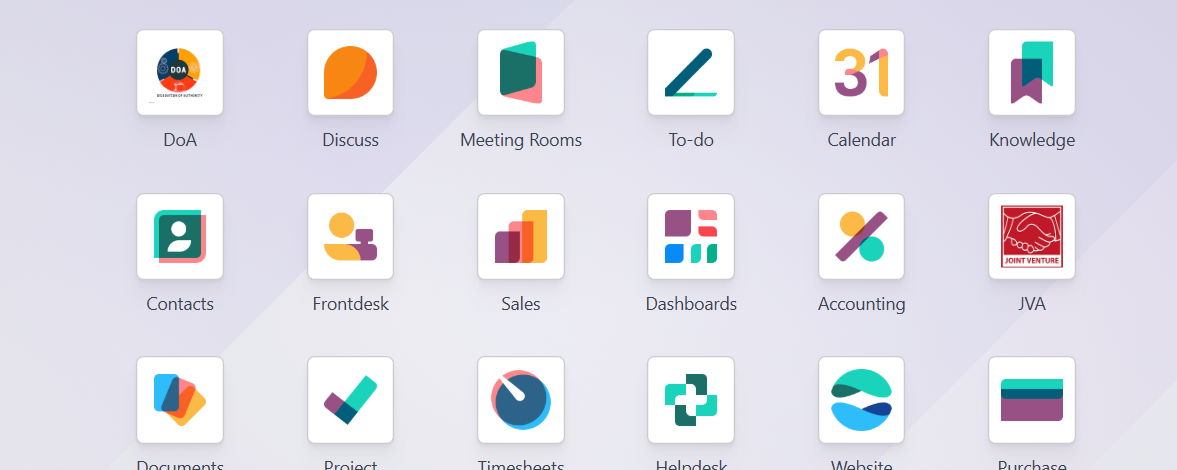
2. Navigate to Accounting → Accounting → Reconciliation. 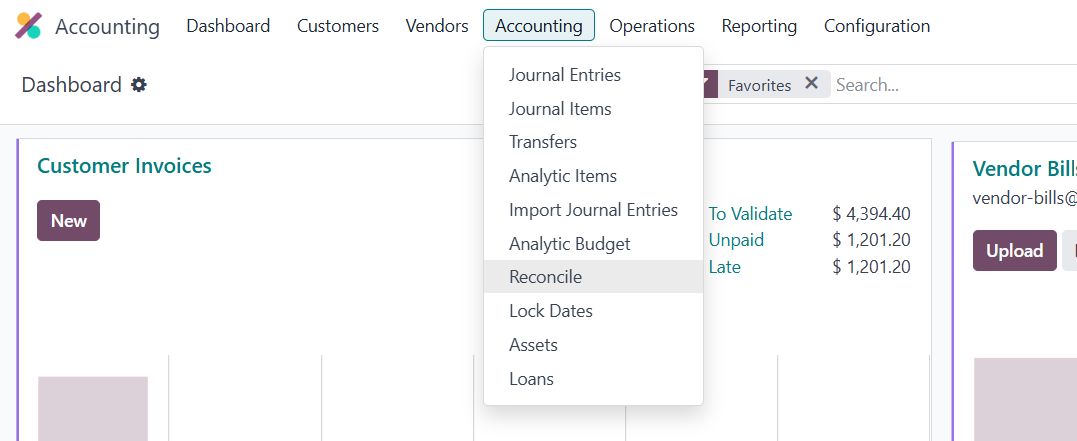
Select the Bank Journal
Choose the Bank Journal you want to reconcile (e.g. Main Bank Account, KCB Bank, Equity Bank).
The system will display imported or recorded bank statements.
View Bank Entries
Bank entries appear on one side, showing:
Date
Reference
Amount
Partner (if available)
Match Bank Entries with System Transactions
Odoo automatically suggests matching entries such as:
Customer payments
Vendor payments
Invoices
Bills
If the correct match appears, select it.
Manual Matching (if needed)
If no automatic match is found:
Search for the related invoice or payment manually
Or create a new entry (e.g. bank charges, interest income).
Handle Differences
If there is a small difference (e.g. bank charges):
Add a write-off line
Select the appropriate account (Bank Charges, Exchange Difference, etc.).
Validate the Reconciliation
Once the bank entry matches the system transaction correctly:
Click Validate or Reconcile.
Confirm Reconciled Status
The entry will be marked as Reconciled.
The bank balance and accounting records are now aligned.
Repeat for Remaining Entries
Continue reconciling until all bank entries for the period are completed.
Document Sign-Off
| Role | Name | Date |
| Prepared By | Martha Ondigi | __________15/05/2026 |
| Reviewed By | Joseph Okech | __________15/05/2026 |
| Approved By | ___________________ | __________ |